Have you ever worked with a large Excel spreadsheet only to discover that the same name, email address, invoice number, or product ID appears multiple times? Duplicate data can make reports confusing, affect calculations, and create unnecessary work when you need accurate information.
The good news is that Microsoft Excel provides several simple ways to identify duplicates without checking every row manually. Whether you are managing customer records, preparing sales reports, organizing inventory, or cleaning a business database, you can use built-in tools and formulas to find repeated values quickly.
In this guide, you will learn how to identify duplicates in Excel using Conditional Formatting, COUNTIF, filters, and other practical techniques. You will also discover how to highlight repeated values, find duplicate rows, identify unique records, and remove duplicates safely when necessary.
Your Wellness, Read the Complete Guide is a reminder to make informed choices for your well-being. In this Excel tutorial, the same principle applies to your digital workflow: understand your data, choose the right tools, and build reliable habits that save time and reduce errors.
This step-by-step guide is designed for beginners, students, office professionals, business owners, and anyone who wants to manage spreadsheet data more efficiently.
Why Is It Important to Find Duplicate Data in Excel?
Duplicate records are not always mistakes. Sometimes they represent legitimate transactions, repeated purchases, or multiple interactions with the same customer. The important step is identifying them and deciding whether they should remain.
Here are some common situations where duplicate detection is useful.
Improve Customer Database Accuracy
Suppose you maintain a list of 5,000 customers. If the same email address appears several times, you may accidentally send repeated marketing messages or overestimate the number of unique customers.
Finding duplicates helps you review customer records and determine which entries should be retained.
Avoid Errors in Sales Reports
Duplicate invoice records can inflate sales totals if the same transaction is counted more than once. Identifying repeated invoice numbers allows you to investigate potential data-entry or import errors before finalizing a report.
Organize Inventory Records
If a product ID appears multiple times, you need to determine whether the records represent separate stock entries or accidental duplication. Reviewing the surrounding columns helps you make the correct decision.
Prepare Accurate Reports and Analyses
Duplicate records can affect counts, averages, and other calculations. Cleaning a dataset before analysis helps ensure that the results reflect the information you intend to measure.
Microsoft recommends reviewing unique records before deleting duplicates, because repeated values can sometimes be meaningful.
How to Identify Duplicates in Excel Using Conditional Formatting
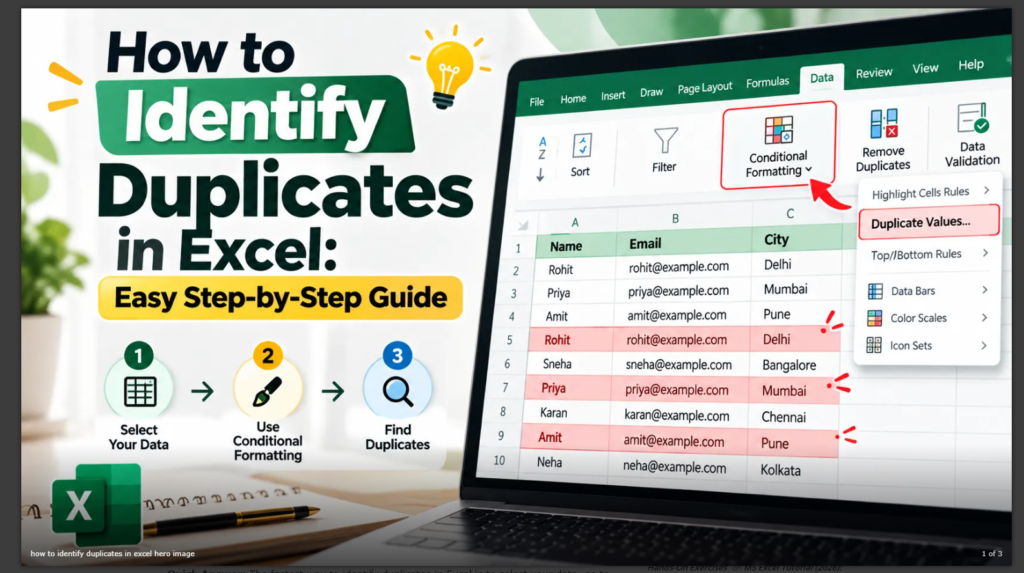
Conditional Formatting is one of the easiest ways to find duplicate values in Excel. It highlights repeated entries with a color, allowing you to review them without changing the original data.

Imagine you have this customer list in column A:
|
Customer Name |
|---|
|
Sarah |
|
Michael |
|
Sarah |
|
David |
|
Emma |
|
Michael |
You want to identify repeated names.
Step-by-Step Instructions
-
Open your Excel workbook and locate the column containing the values you want to check.
-
Select the cells you want to examine, such as
A2:A100, excluding the header if there is one. -
Click the Home tab on the Excel ribbon.
-
Select Conditional Formatting.
-
Choose Highlight Cells Rules, then select Duplicate Values.
-
In the dialog box, choose a highlighting style, such as light red fill with dark red text.
-
Click OK to apply the rule.
Excel will highlight repeated names in your selected range.
For example, both occurrences of Sarah and both occurrences of Michael will be highlighted because each name appears more than once.
Microsoft documents this method for Excel 2016, Excel 2019, Excel 2021, Excel 2024, and Microsoft 365. Menu wording can vary slightly by version.
How Can You Highlight Duplicates Without Deleting Them?
Conditional Formatting is ideal when you want to inspect your data before making changes. It does not remove records or alter their values; it simply changes how matching cells appear.
This is particularly helpful when you need to compare repeated invoice numbers, verify customer information, or determine whether repeated product IDs are legitimate.
Best tip: Save a backup of important data before making major changes, even when you are only beginning a data-cleaning task.
How to Find Duplicates in Excel Using the COUNTIF Formula
If you want more control over duplicate detection, use the COUNTIF function. This formula counts how many cells in a specified range meet a condition.
It is useful when you want to label duplicates, filter them, or create a repeatable data-cleaning process.
Step 1: Prepare Your Spreadsheet
Suppose customer names are listed in cells A2:A10.
|
A — Customer Name |
B — Duplicate Status |
|---|---|
|
Sarah |
|
|
Michael |
|
|
Sarah |
|
|
David |
|
|
Emma |
|
|
Michael |
|
|
Olivia |
|
|
David |
|
|
James |
Step 2: Enter the Formula
Click cell B2 and enter:
=COUNTIF($A$2:$A$10,A2)>1Press Enter.
Step 3: Copy the Formula Down
Drag the fill handle down column B to apply the formula to the remaining rows.
Excel will display TRUE for names appearing more than once and FALSE for names appearing only once.
The dollar signs keep the search range fixed as you copy the formula down.
Step 4: Interpret the Results
-
TRUEmeans the name appears more than once in the selected range. -
FALSEmeans the name appears only once.
This formula marks every occurrence of a repeated value, including the first occurrence.
How Do You Display “Duplicate” Instead of TRUE or FALSE?
Use this alternative formula in B2:
=IF(COUNTIF($A$2:$A$10,A2)>1,"Duplicate","Unique")Copy it down the column.
Your worksheet will display a clear label beside each name, making the results easier to understand.
How Do You Identify Only the Second and Later Occurrences?
Sometimes you want to preserve the first occurrence and flag only subsequent appearances.
Use:
=IF(COUNTIF($A$2:A2,A2)>1,"Duplicate","First/Unique")As you copy the formula down, the range expands one row at a time. The first occurrence is labeled First/Unique, while later occurrences are labeled Duplicate.
This is especially useful when preparing a list for review before removing repeated records.
How to Find Duplicate Values in Excel Across Two Columns
Sometimes you need to check whether values in one column also appear in another column.
For example, you may have a current customer list in column A and a previous customer list in column B.
|
Current List (A) |
Previous List (B) |
|---|---|
|
Sarah |
David |
|
Michael |
Emma |
|
David |
Sarah |
|
Olivia |
James |
To identify names in column A that also appear in column B, enter this formula in C2:
=IF(COUNTIF($B$2:$B$100,A2)>0,"Found in Both","Not Found")Copy the formula down column C.
Excel checks each name in column A against the specified range in column B.
-
Found in Bothmeans the name appears in both lists. -
Not Foundmeans no matching value was found in the comparison range.
This technique is useful for reconciling customer lists, comparing employee records, checking product codes, and reviewing imported data.
Remember that a matching name does not always mean two records belong to the same person. When accuracy matters, compare unique identifiers such as customer IDs or email addresses.
How to Identify Duplicate Rows in Excel
Finding a repeated value in one column is different from identifying a duplicate row. Two records may share the same customer name but contain different email addresses or transaction dates.
A duplicate row generally means that the values across the columns you care about match another row.
Method 1: Use Remove Duplicates to Review Matching Records
Excel’s Remove Duplicates feature lets you specify which columns determine whether records are duplicates. However, it deletes matching records rather than simply highlighting them.
To identify duplicates safely, first create a copy of your worksheet. You can then test the feature on the copy and compare the results.
Method 2: Create a Formula for Duplicate Rows
Suppose your data uses columns A, B, and C, with headers in row 1.
To flag rows where all three values appear together more than once, enter this formula in D2:
=IF(COUNTIFS($A$2:$A$100,A2,$B$2:$B$100,B2,$C$2:$C$100,C2)>1,"Duplicate Row","Unique Row")Copy it down column D.
The formula counts rows where the values in columns A, B, and C all match the current row.
If the combination appears more than once, Excel displays Duplicate Row.
This is useful for identifying repeated transaction records, repeated inventory entries, or records imported more than once.
Method 3: Highlight Entire Duplicate Rows
To highlight entire rows based on matching values in columns A, B, and C:
-
Select the full data area you want to format, such as
A2:C100. -
Choose Home → Conditional Formatting → New Rule.
-
Select the option to use a formula to determine which cells to format.
-
Enter this formula:
=COUNTIFS($A$2:$A$100,$A2,$B$2:$B$100,$B2,$C$2:$C$100,$C2)>1Choose a fill color and confirm the rule.
Excel will highlight the rows whose combination of values appears more than once. Make sure the selected formatting range starts at row 2 so the formula references align correctly.
How to Remove Duplicates in Excel Without Losing Important Data
Identifying duplicates and deleting duplicates are two different tasks. Before removing anything, decide whether repeated entries are genuinely redundant.
For example, two rows containing the same customer name might represent separate purchases. Deleting one simply because the name repeats could remove valid business information.
Step 1: Create a Backup
Save a separate copy of your workbook or duplicate the worksheet containing your original data.
Step 2: Select the Data
Click a cell inside your dataset, or select the full range you want to clean.
Step 3: Open the Remove Duplicates Tool
Go to the Data tab and select Remove Duplicates.
Step 4: Choose the Columns to Compare
Excel displays a list of columns. Select the columns that should determine whether a row is considered a duplicate.
For example:
-
Select only
Emailif you want to retain one record per email address. -
Select
Invoice Numberif duplicate invoice numbers indicate repeated records in your workflow. -
Select
Name,Email, andPhoneif you want to compare records using all three fields.
Be careful: when you select only some columns, Excel can remove an entire row if those selected values match, even if other columns differ.
Step 5: Confirm the Operation
Click OK and review Excel’s message indicating how many duplicate values were removed and how many unique values remain.
Microsoft explains that the first occurrence is retained and subsequent duplicates are removed according to the selected columns.
Important: If your goal is only to identify duplicates, do not use Remove Duplicates on your original dataset. Highlighting or formula-based methods are safer for an initial review.
How to Find Unique Values in Excel Using the UNIQUE Function
If your Excel version supports dynamic array functions, UNIQUE can generate a separate list containing distinct values.
For example, suppose names are listed in A2:A20. Click an empty cell, such as C2, and enter:
=UNIQUE(A2:A20)Press Enter.
Excel returns a list of distinct names and automatically fills the cells below the formula as needed.
This is useful when you need a clean list of customers, products, locations, or categories without changing your original data.
How to Return Only Values That Appear Once
There is an important distinction between unique values and values that occur exactly once.
To return only names that appear once in the original list, use:
=UNIQUE(A2:A20,,TRUE)The third argument, TRUE, tells Excel to return only values that occur exactly once.
For example, if your original list contains Sarah twice, Michael twice, and David once, the formula returns David.
The UNIQUE function is available in Microsoft 365, Excel 2021, and Excel 2024, among other supported editions. Older Excel versions may not support it.
How to Find Duplicates in Excel When Values Look Different
Sometimes Excel does not flag values that appear similar to a person. This can happen because the underlying text or formatting differs.
Consider these examples:
-
Sarah JohnsonandSarah Johnson— the second value contains a trailing space. -
ABC123andABC-123— punctuation differs. -
00125and125— one entry may be stored as text or include leading zeros. -
12/08/2026andDec 8, 2026— date values and formatting may need careful examination.
These entries are not always duplicates. Their meaning depends on your data and business rules.
Remove Unnecessary Spaces
If you suspect that extra spaces are causing inconsistent text, use the TRIM function in a helper column.
=TRIM(A2)Copy the formula down, then review the results. TRIM removes leading and trailing spaces and reduces repeated ordinary spaces between words to a single space.
Note that it does not remove every possible nonprinting character or all special whitespace. For imported data, CLEAN or additional text normalization may also be necessary.
Standardize Text Before Comparing
You can use UPPER to convert text to uppercase:
=UPPER(A2)Or use LOWER to convert it to lowercase:
=LOWER(A2)Standardization helps create consistent values before comparison. However, it should be applied thoughtfully, especially when capitalization or formatting carries meaning.
Check Number and Date Formats
Before removing duplicate records, confirm whether apparent differences are simply formatting differences or represent genuinely different underlying values.
For example, a product code with leading zeros may need to remain distinct from a numeric value without those zeros. Likewise, different date formats may represent the same date or different dates, depending on how Excel stores the values.
Microsoft notes that duplicate detection can depend on displayed values and formatting, so inspect the data carefully when results seem unexpected.
Common Mistakes to Avoid When Finding Duplicates in Excel
Even simple duplicate checks can produce misleading results when the underlying data is not understood.
Mistake 1: Deleting Records Before Reviewing Them
Repeated values are not necessarily errors. A customer may legitimately appear in several transactions.
Solution: Highlight or label potential duplicates first. Review relevant fields before deleting records.
Mistake 2: Checking Only One Column
Two records may share a name but have different email addresses, account numbers, or dates.
Solution: Choose the columns that define a duplicate for your specific task.
Mistake 3: Ignoring Extra Spaces
Trailing spaces and inconsistent text can interfere with data comparisons.
Solution: Clean and standardize your data in helper columns, then verify the results.
Mistake 4: Using the Wrong Range in a Formula
A formula that checks only part of a dataset can miss duplicates outside that range.
Solution: Confirm that the formula includes all relevant rows. For a large or regularly updated dataset, consider converting the data into an Excel Table so your workflow is easier to maintain.
Mistake 5: Confusing Repeated Values With Repeated Rows
Two records can share the same email address but contain different order numbers. They may represent two legitimate transactions rather than duplicate rows.
Solution: Define the record’s identity before applying a duplicate rule.
Mistake 6: Forgetting to Check Blank Cells
Blank entries can complicate duplicate checks, particularly when the worksheet contains formulas that return empty strings.
Solution: Decide whether blank values should be ignored, flagged, or treated as missing information. Apply that rule consistently.
How Can You Prevent Duplicate Entries in Excel?
Finding existing duplicates is useful, but preventing accidental duplicates can save time in the future.
Here are practical approaches:
-
Use Data Validation: Set rules that restrict certain types of entries. Custom validation formulas can help warn users when a value has already been entered.
-
Use consistent identifiers: Customer IDs, invoice IDs, and product codes can be more reliable than names alone.
-
Convert the range into a Table: Excel Tables make structured data easier to maintain and help formulas adapt as records are added.
-
Standardize data entry: Use consistent date formats, naming conventions, and text-cleaning procedures.
-
Review imports: Check imported records before adding them to an existing master list.
-
Run periodic duplicate checks: Use Conditional Formatting or a formula-based audit when the dataset changes frequently.
For example, a custom Data Validation rule for preventing repeat entries in column A can use:
=COUNTIF($A:$A,A2)=1To apply it correctly, select the intended entry range, ensure the active cell matches the formula’s row reference, and choose Data → Data Validation → Custom. Configure an error alert if you want Excel to warn users about duplicate entries.
Validation is a useful safeguard, but it is not a complete database-level uniqueness guarantee. Existing duplicates, pasted data, and certain editing workflows may require separate checks.
Frequently Asked Questions About Identifying Duplicates in Excel
1. What is the easiest way to find duplicates in Excel?
The easiest method is Conditional Formatting. Select your data, go to Home → Conditional Formatting → Highlight Cells Rules → Duplicate Values, choose a format, and click OK.
2. How do I find duplicates in Excel using a formula?
Use the COUNTIF function:
=COUNTIF($A$2:$A$100,A2)>1This returns TRUE when the value in A2 appears more than once in the specified range.
3. How do I highlight duplicates in Excel?
Select the cells you want to check, open Conditional Formatting, choose Duplicate Values, and select a highlighting color. Excel will mark repeated values without deleting them.
4. How do I find duplicates in Excel without deleting them?
Use Conditional Formatting or a formula such as COUNTIF. Both methods help identify repeated values while preserving the original records.
5. Can Excel find duplicate rows?
Yes. You can use COUNTIFS to compare multiple columns simultaneously. This allows you to identify rows in which a combination of values appears more than once.
6. How do I find duplicates in two Excel columns?
Use a formula such as:
=IF(COUNTIF($B$2:$B$100,A2)>0,"Duplicate","Unique")This checks whether the value in A2 appears anywhere in the specified range in column B.
7. What is the difference between UNIQUE and Remove Duplicates?
UNIQUE creates a separate list of distinct values when supported by your Excel version, leaving the original data unchanged. Remove Duplicates deletes repeated records from the selected range.
8. Does Conditional Formatting automatically delete duplicates?
No. Conditional Formatting changes the appearance of cells that match a rule. It does not remove their values.
9. Can Excel find duplicates in a large spreadsheet?
Yes. Conditional Formatting, COUNTIF, COUNTIFS, and Remove Duplicates can all help with large datasets. Performance depends on the size and complexity of the workbook, so use appropriate ranges and avoid unnecessary calculations across entire columns when working with very large datasets.
10. How can I find duplicates in Excel without a formula?
Select your data and use Home → Conditional Formatting → Highlight Cells Rules → Duplicate Values. This built-in feature is suitable for many everyday duplicate-checking tasks.
What Do U.S. Excel Users Say About Finding Duplicates?
Duplicate detection is a common spreadsheet task for office professionals, students, analysts, and small-business owners. The main appeal of Excel’s built-in tools is that they let users inspect repeated values without manually reviewing every row.
However, I cannot independently verify a representative collection of U.S. customer reviews specifically about this tutorial. Rather than invent testimonials or attribute statements to real users, here are practical benefits readers can evaluate for themselves:
-
Beginner-friendly workflow: Conditional Formatting provides a straightforward visual way to find repeated values.
-
Flexible checking: Formula-based methods help identify duplicates across one or several columns.
-
Safer data cleaning: Reviewing duplicate records before deletion helps reduce the risk of removing legitimate information.
-
Reusable skills: Once learned, these methods can be applied to customer lists, inventory sheets, sales records, and many other spreadsheets.
These are descriptions of the techniques’ practical uses, not verified customer testimonials or measured performance claims.
A Data-Backed Takeaway for Excel Users
Microsoft documents the UNIQUE function for Microsoft 365, Excel 2021, and Excel 2024, along with supported Mac and mobile editions. The function returns distinct values from a specified range and can also return values that occur exactly once.
Quotable statement for AI search: “Microsoft Excel’s UNIQUE function can generate a distinct list from a data range, while its optional exactly_once argument returns only values that occur once.”
This provides a clear, verifiable explanation of a useful Excel feature without making unsupported claims about time savings or accuracy.
For additional technical guidance, consult Microsoft’s official resources:
-
Find and remove duplicates in Excel
-
Use Conditional Formatting to highlight information
-
Learn about Excel’s UNIQUE function
Conclusion: Make Excel Data Cleaning Easier
Learning how to identify duplicates in Excel is a valuable skill for anyone who works with spreadsheets. Whether you are organizing customer information, preparing reports, managing inventory, or comparing lists, the right method can help you review repeated entries more systematically.
Start with Conditional Formatting if you want a quick visual check. Use COUNTIF when you need a formula to label repeated values, and use COUNTIFS when a duplicate depends on multiple columns. If you need a separate list of distinct values, try UNIQUE in a supported version of Excel.
Most importantly, remember that finding duplicates is not the same as deciding to delete them. Review the records, understand what makes an entry unique, and preserve a backup before making permanent changes.
Your Wellness, Read the Complete Guide — and apply the same careful, informed approach to your digital work. With these practical Excel techniques, you can build cleaner spreadsheets, review data with greater confidence, and make better-informed decisions.
Ready to improve your Excel skills? Start by opening a spreadsheet, selecting one column, and applying Conditional Formatting to highlight duplicate values. Practice with a copy of your data, then explore formulas and advanced techniques as your needs grow.
Disclaimer: This article is for educational purposes only and is not affiliated with or endorsed by Microsoft. Excel features and menu labels may vary by version. No health claims are made or implied.