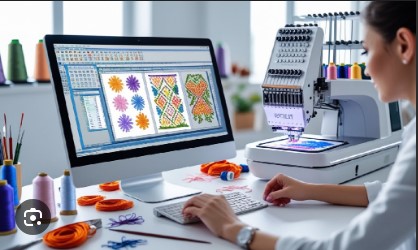
You’ve found the perfect embroidery design online, but it’s in .DST format, and your Brother machine only reads .PES files. This is a common roadblock, but it’s one you can easily overcome. A Brother PES file Converter is the tool you need to translate that design into a language your machine understands. While the concept is simple, using a converter correctly is key to avoiding errors like corrupt files or missing colors. This step-by-step guide will walk you through the entire process—from choosing reliable software to saving and testing your new file—so you can convert any design with confidence and get back to stitching.
Before You Begin: Choosing the Right Converter
Not all converters are created equal. For reliable, step-by-step results, you need dependable software. We recommend starting with one of these user-friendly options:
-
SewWhat-Pro: A popular, affordable, and dedicated conversion program. It’s simple and excels at this one job.
-
Embird Studio: A more full-featured embroidery suite with excellent conversion capabilities.
-
Brother PE-Design: Brother’s own software, which can import and convert various formats natively.
Avoid free online converters for important projects. They are notorious for producing corrupted or poorly translated files that can ruin your design and waste materials.
For this guide, we’ll use SewWhat-Pro as our example because of its straightforward, single-purpose design. The steps in other programs like Embird will be very similar, typically using a “Save As” or “Export” function.
Step 1: Install and Launch Your Chosen Software
First, purchase and download your converter software from the official website. Follow the installation instructions. Once installed, open the program. You’ll be greeted with a main screen—often a blank workspace or a file browser window.
Step 2: Open Your Source Design File
This is where you load the design you want to convert (e.g., a .DST, .EXP, .JEF, .VIP file).
-
Click on “File” in the top menu bar.
-
Select “Open” from the dropdown menu.
-
Navigate through your computer folders to find the embroidery file you want to convert. Select it and click “Open.”
The design should now appear on your screen. You may see a color-coded preview and a stitch count. This confirms the software has correctly read the file.
Step 3: Prepare for Conversion (The “Save As” Command)
This is the most critical step to avoid mistakes. Do not simply click “Save.”
-
Click on the “File” menu again.
-
This time, select “Save As…”. This option ensures you create a brand new .PES file while keeping your original source file untouched and safe.
Step 4: Choose the Correct PES Format and Location
A “Save As” dialog box will appear. This is where you make the key decisions.
-
Name Your File: In the “File name” field, give your new design a clear name (e.g., “Eagle_Logo_PES”).
-
Choose Save Location: Navigate to where you want to save the file—like a dedicated “Embroidery Designs” folder or directly to your USB stick.
-
Select File Type (THIS IS THE KEY STEP): Click the dropdown menu labeled “Save as type:” or “Format:”. Scroll through the list and select “.PES”.
-
Pro Tip: Some converters list multiple PES versions (e.g., “PES (Brother)” , “PES Version 6”). If unsure, the standard “.PES” is usually fine. If you have an older Brother machine and encounter issues, you may need to come back and try “PES Version 1.”
-
Step 5: Execute the Conversion and Save
Double-check your selected format is .PES and your file has a good name. Click the “Save” button.
The software will now process the stitch data, translating it from the source format (like .DST) into the Brother .PES format. This only takes a moment. You now have two files: your original (e.g., Eagle_Logo.DST) and your new, converted copy (e.g., Eagle_Logo_PES.PES).
Step 6: Transfer and Test on Your Machine
The conversion is done digitally, but the real test happens on your machine.
-
Transfer: Safely eject your USB stick from the computer and plug it into your Brother embroidery machine.
-
Navigate: Use your machine’s screen to browse to the new .PES file and select it. You should see a preview image.
-
THE CRITICAL TEST SEW: Never skip this step. Before stitching on your final project:
-
Hoop a piece of scrap fabric similar to your final garment.
-
Use the appropriate stabilizer.
-
Run the design and watch carefully.
-
Step 7: Analyze the Test and Troubleshoot
Observe the test sew. A successful conversion will look identical to the original design preview, with all colors sewing in the correct order and sections aligned.
If you encounter problems, here’s what they likely mean:
-
“Invalid File” or File Won’t Load: The conversion failed. Re-do Step 4, ensuring you selected “.PES” as the save type. Try a different PES variant.
-
Colors Are Out of Order: The color palette converted imperfectly. You may need to manually adjust the thread order on your machine before stitching.
-
Design Stitches Poorly (Puckering, Breaks): This is not a conversion error. It means the original design was poorly digitized. A converter changes format, not quality. You would need the file professionally edited.
Pro Tips for Flawless Conversions Every Time
-
Always Keep Originals: Never overwrite your source files. Always use “Save As.”
-
Organize: Create a clear folder system on your computer (e.g., “Designs > Animals > Converted_PES”).
-
Update Software: Ensure your converter software is up-to-date for the best compatibility with new file types.
-
When in Doubt, Go Pro: If a file consistently fails or is for a paid client project, use a professional digitizing service. For a small fee, they guarantee a perfect, working .PES file.
Conclusion: Your Gateway to Unlimited Designs
Following these steps to use a Brother PES file Converter correctly unlocks a world of creativity. No design is off-limits simply because of its file format. By investing in reliable software like SewWhat-Pro, methodically using the “Save As” function, and religiously performing test sews, you turn a potential technical headache into a simple, routine task.
Remember, the converter is just a translator. It gives your Brother machine the instructions it needs in a language it understands. Now that you have the step-by-step blueprint, you can confidently explore any embroidery library, convert your finds, and focus on what you love most—watching your machine bring beautiful designs to life, one perfect stitch at a time.