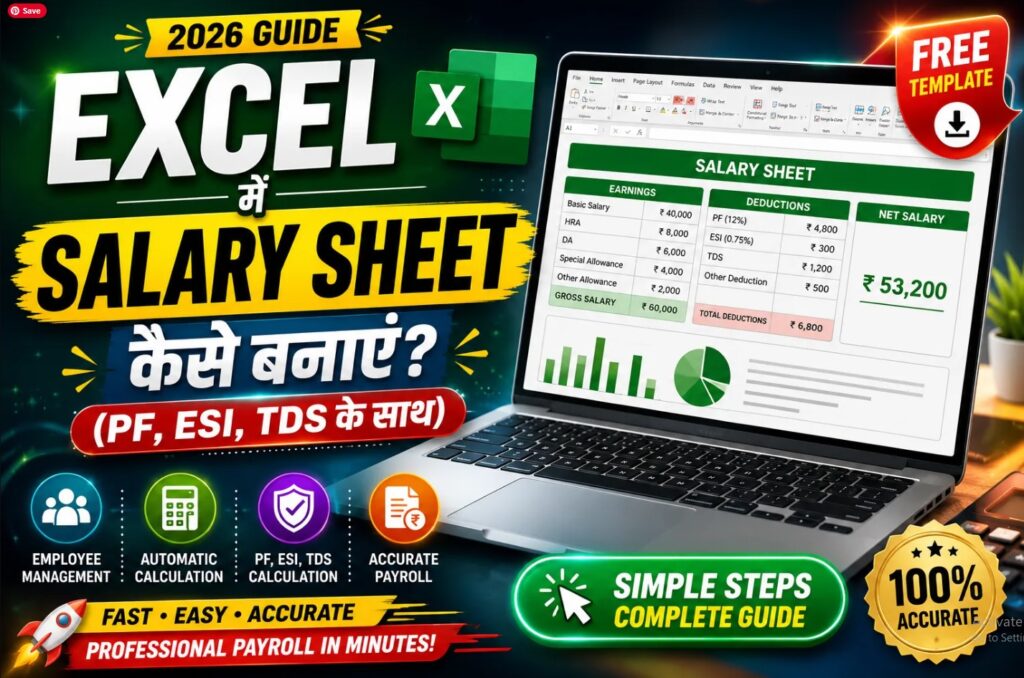
Agar aap kisi company, office, school, shop, startup ya small business ke employees ki salary calculate karte hain, to Excel par Employee Salary Sheet banana ek simple aur useful solution ho sakta hai. Excel ki madad se aap employee ki basic salary, attendance, overtime, allowances, deductions aur final net salary ko ek organized format mein calculate kar sakte hain.
Manual calculation mein mistakes hone ka chance hota hai, especially jab employees ki sankhya zyada ho. Excel mein formulas use karke salary calculation ko largely automatic banaya ja sakta hai. Ek baar formulas set karne ke baad har employee ki salary calculate karna kaafi easy ho jata hai.
Is guide mein hum step by step samjhenge ki Excel mein employee salary sheet kaise banayein, kaun-se columns rakhne chahiye, salary calculate karne ke liye kaun-se formulas use kar sakte hain, attendance aur overtime ko kaise include karein, deductions kaise calculate karein aur final salary report kaise prepare karein.
Employee Salary Sheet Kya Hoti Hai?
Employee Salary Sheet ek Excel worksheet hoti hai jisme employees ki monthly salary se related information record ki jaati hai.
Ek typical salary sheet mein ye information ho sakti hai:
- Employee ID
- Employee Name
- Department
- Designation
- Basic Salary
- Working Days
- Present Days
- Leave Days
- Absent Days
- Overtime Hours
- Overtime Amount
- Allowances
- Gross Salary
- Deductions
- Net Salary
Is sheet ka main purpose salary calculation ko organized, accurate aur easy-to-manage banana hota hai.
Excel Mein Salary Sheet Banane Ke Liye Kya Chahiye?
Salary sheet banane ke liye aapko Microsoft Excel ya kisi compatible spreadsheet application ki zarurat hogi.
Aap Excel ke kisi bhi recent version ka use kar sakte hain.
Sabse pehle ek new workbook open karein.
Step 1: Microsoft Excel open karein.
Step 2: Blank Workbook select karein.
Step 3: Sheet ka naam change karke Employee Salary Sheet rakh sakte hain.
Step 4: Sabse upar company name aur salary month likhein.
Example:
ABC Private Limited
Employee Salary Sheet – August 2026
Isse worksheet professional aur easy to understand lagegi.
Salary Sheet Mein Kaun-Kaun Se Columns Banayein?
Ab Excel ki first row mein headings create karein.
Example structure:
| Column | Heading |
|---|---|
| A | Employee ID |
| B | Employee Name |
| C | Department |
| D | Designation |
| E | Basic Salary |
| F | Working Days |
| G | Present Days |
| H | Leave Days |
| I | Overtime Hours |
| J | Allowance |
| K | Overtime Amount |
| L | Gross Salary |
| M | PF |
| N | ESI |
| O | Other Deduction |
| P | Total Deduction |
| Q | Net Salary |
Aap apne business ki requirements ke according additional columns bhi add kar sakte hain.
Step 1: Employee Basic Information Enter Karein
Sabse pehle employee ki basic information enter karein.
For example:
| Employee ID | Employee Name | Department | Designation |
| EMP001 | Rahul Sharma | Sales | Executive |
| EMP002 | Priya Singh | HR | Manager |
| EMP003 | Amit Kumar | Accounts | Accountant |
Employee ID unique rakhna useful hota hai.
Agar employee ID repeat nahi hoti, to future mein salary records search aur manage karna easier ho jata hai.
Step 2: Basic Salary Add Karein
Next column mein employee ki monthly basic salary enter karein.
Example:
| Employee Name | Basic Salary |
| Rahul Sharma | ₹25,000 |
| Priya Singh | ₹40,000 |
| Amit Kumar | ₹30,000 |
Dhyan rakhein ki salary values ko properly format karein.
Excel mein currency format apply karne ke liye:
Home → Number → Currency
ya
Home → Number → Accounting
select kar sakte hain.
Step 3: Working Days Add Karein
Ab month ke total working days enter karein.
Example:
| Employee | Working Days |
| Rahul Sharma | 26 |
| Priya Singh | 26 |
| Amit Kumar | 26 |
Agar company Sunday ko weekly off rakhti hai, to working days month ke calendar ke according calculate kiye ja sakte hain.
Aap manually bhi working days enter kar sakte hain.
Step 4: Present Days Add Karein
Ab employee ke present days enter karein.
Example:
| Employee | Working Days | Present Days |
| Rahul Sharma | 26 | 24 |
| Priya Singh | 26 | 26 |
| Amit Kumar | 26 | 23 |
Present days salary calculation mein important role play karte hain, especially jab company attendance-based salary calculation follow karti hai.
Step 5: Leave Days Add Karein
Agar employee ne paid ya unpaid leave li hai, to leave ko separate record karna useful hai.
Example:
| Employee | Working Days | Present Days | Leave |
| Rahul Sharma | 26 | 24 | 2 |
| Priya Singh | 26 | 26 | 0 |
| Amit Kumar | 26 | 23 | 3 |
Paid leave aur unpaid leave ko alag columns mein rakhna aur bhi better ho sakta hai.
For example:
- Paid Leave
- Unpaid Leave
Isse salary deduction ko accurately calculate karna easier hota hai.
Step 6: Absent Days Automatically Calculate Karein
Agar Working Days column F mein hai aur Present Days column G mein hai, to Absent Days calculate karne ke liye formula use kar sakte hain:
=F2-G2
Example:
Working Days = 26
Present Days = 24
Absent Days:
=26-24
Result:
2
Agar formula row 2 mein hai, to next employees ke liye formula drag down kar sakte hain.
Step 7: Per Day Salary Calculate Karein
Attendance-based salary ke liye per-day salary calculate karna useful hota hai.
Maan lijiye:
- Basic Salary = ₹26,000
- Working Days = 26
Per Day Salary:
=E2/F2
Agar E2 mein Basic Salary aur F2 mein Working Days hain, formula hoga:
=E2/F2
Result:
₹1,000 per day
Lekin actual payroll rules company, employment contract aur applicable laws ke according different ho sakte hain Employee Salary Calculation in Excel
Step 8: Attendance-Based Salary Calculate Karein
Agar salary present days ke according calculate karni hai, to formula ho sakta hai:
=(E2/F2)*G2
Yahan:
- E2 = Basic Salary
- F2 = Working Days
- G2 = Present Days
Example:
Basic Salary = ₹26,000
Working Days = 26
Present Days = 24
Calculation:
₹26,000 ÷ 26 × 24
= ₹24,000
Agar paid leave applicable hai, to calculation structure company policy ke according modify karna hoga.
Step 9: Allowance Add Karein
Employee salary mein different allowances ho sakte hain.
For example:
- HRA
- Travel Allowance
- Food Allowance
- Medical Allowance
- Special Allowance
Aap ek single Allowance column bhi bana sakte hain ya individual allowance columns create kar sakte hain.
Example:
| Basic Salary | HRA | Travel Allowance | Other Allowance |
| ₹25,000 | ₹5,000 | ₹2,000 | ₹1,000 |
Agar multiple allowances hain, to total allowance calculate karne ke liye:
=SUM(H2:J2)
use kiya ja sakta hai.
Step 10: Overtime Hours Add Karein
Agar employees overtime karte hain, to salary sheet mein Overtime Hours ka column add karein.
Example:
| Employee | Overtime Hours |
| Rahul Sharma | 5 |
| Priya Singh | 3 |
| Amit Kumar | 8 |
Overtime payment company policy aur applicable employment rules ke according calculate kiya jana chahiye.
Agar hourly overtime rate ₹150 hai aur employee ne 5 hours overtime kiya hai, to:
=I2*150
Result:
₹750
Better practice ye hai ki overtime rate ko ek separate cell mein rakhein instead of formula mein directly 150 likhne ke.
Step 11: Overtime Rate Ko Separate Cell Mein Rakhein
For example, cell S2 mein overtime rate enter karein:
150
Then overtime amount formula:
=I2*$S$2
Yahan $S$2 absolute reference hai.
Iska benefit ye hai ki jab formula neeche drag karenge, overtime rate ka cell change nahi hoga.
Step 12: Gross Salary Calculate Karein
Gross salary generally earnings ka total hota hai before applicable deductions.
Example:
Basic Salary = ₹25,000
Allowance = ₹5,000
Overtime = ₹750
Gross Salary:
₹25,000 + ₹5,000 + ₹750
= ₹30,750
Excel formula:
=E2+J2+K2
Ya:
=SUM(E2,J2,K2)
Aap salary structure ke according additional earning components bhi include kar sakte hain.
Step 13: Deductions Add Karein
Salary sheet mein deductions ke liye separate columns useful hote hain.
Common examples:
- PF
- ESI
- Professional Tax
- Loan/Advance
- Other Deduction
Applicable deductions employee category, salary structure, location, company policy aur current laws ke according vary kar sakte hain.
Isliye actual payroll processing ke liye current applicable rules verify karna important hai.
Step 14: Total Deduction Calculate Karein
Suppose:
- PF = ₹1,800
- ESI = ₹0
- Other Deduction = ₹500
Total deduction:
₹1,800 + ₹0 + ₹500
Excel formula:
=SUM(M2:O2)
Result:
₹2,300
Step 15: Net Salary Calculate Karein
Net salary employee ko payable salary calculate karne ke liye use ki jaati hai.
Basic formula:
Net Salary = Gross Salary − Total Deduction
Agar Gross Salary L2 mein hai aur Total Deduction P2 mein hai:
=L2-P2
Example:
Gross Salary = ₹30,750
Total Deduction = ₹2,300
Net Salary:
₹30,750 − ₹2,300
= ₹28,450
Complete Salary Sheet Example
Aapki final worksheet kuch is tarah ho sakti hai:
| ID | Employee | Basic | Working Days | Present | OT Hours | Allowance | OT Amount | Gross | PF | ESI | Other Ded. | Total Ded. | Net Salary |
| EMP001 | Rahul | 25,000 | 26 | 24 | 5 | 5,000 | 750 | 30,750 | 1,800 | 0 | 500 | 2,300 | 28,450 |
| EMP002 | Priya | 40,000 | 26 | 26 | 3 | 7,000 | 450 | 47,450 | 1,800 | 0 | 0 | 1,800 | 45,650 |
| EMP003 | Amit | 30,000 | 26 | 23 | 8 | 5,000 | 1,200 | 32,738 | 1,800 | 0 | 500 | 2,300 | 30,438 |
The figures above are only examples for understanding Excel calculations. Actual payroll deductions should be calculated according to the applicable rules and the employee’s salary structure.
Useful Excel Formulas for Salary Sheet
Excel formulas salary sheet ko automatic banane mein help karte hain.
Total Allowance
=SUM(H2:J2)
Absent Days
=F2-G2
Per Day Salary
=E2/F2
Attendance-Based Salary
=(E2/F2)*G2
Overtime Amount
=I2*$S$2
Gross Salary
=SUM(E2,J2,K2)
Total Deduction
=SUM(M2:O2)
Net Salary
=L2-P2
IF Formula Ka Use Kaise Karein?
IF formula salary sheets mein kaafi useful ho sakta hai.
For example, agar employee ke present days 20 se kam hain, to ek warning show karni ho:
=IF(G2<20,"Check Attendance","OK")
Isse attendance verification easy ho sakta hai.
Aap IF formula ka use eligibility, overtime, bonus, leave status aur other payroll conditions ke liye bhi kar sakte hain.
SUMIF Formula Ka Use
Agar aap department-wise salary total calculate karna chahte hain, to SUMIF useful hai.
For example:
=SUMIF(C:C,"Sales",Q:Q)
Ye formula Sales department ke employees ki Net Salary ka total calculate kar sakta hai, assuming Department column C aur Net Salary column Q mein hai.
COUNTIF Formula Ka Use
Employee count ke liye:
=COUNTIF(C:C,"Sales")
Isse Sales department mein employees ki number count ki ja sakti hai.
Salary Sheet Ko Professional Kaise Banayein?
Basic salary sheet banane ke baad formatting karne se workbook professional dikhegi.
Heading Format Karein
First row ko bold karein.
Header mein suitable background formatting apply kar sakte hain.
Text alignment ko center ya appropriate position par set karein.
Borders Add Karein
Complete salary table select karke borders apply karein.
Isse rows aur columns easily readable ho jayenge.
Currency Format
Salary columns ko currency ya accounting format mein rakhein.
Freeze Panes
Agar employee list bahut long hai, to headings ko visible rakhne ke liye:
View → Freeze Panes → Freeze Top Row
use kar sakte hain.
Excel Table Feature Ka Use Karein
Aap salary data ko Excel Table mein convert kar sakte hain.
Data select karein aur:
Ctrl + T
press karein.
Excel table create ho jayegi.
Iske advantages:
- Automatic formatting
- Filters
- Easy sorting
- Formula auto-fill
- Data expansion
- Better readability
Filter Kaise Lagayein?
Agar aapko sirf HR department ke employees dekhne hain, to Department column par filter laga sakte hain.
Table mein filter dropdown select karein aur required department choose karein.
Isi tarah aap:
- Department
- Designation
- Employee
- Salary range
ke according data filter kar sakte hain.
Salary Sheet Mein Drop-Down List Kaise Banayein?
Data entry mistakes kam karne ke liye dropdown useful hai.
For example, Department column mein options ho sakte hain:
- HR
- Sales
- Accounts
- IT
- Marketing
Banane ke steps:
Data → Data Validation → Allow: List
Phir department options enter karein.
Isse manual typing errors reduce ho sakte hain.
Employee Attendance Sheet Ko Salary Sheet Se Link Karna
Agar aapke paas separate attendance sheet hai, to salary sheet ko attendance data se link kiya ja sakta hai.
For example, ek workbook mein:
Sheet 1: Employee Master
Sheet 2: Attendance
Sheet 3: Salary
Attendance sheet mein Present Days maintain kiye ja sakte hain aur salary sheet mein formulas ke through data reference kiya ja sakta hai.
Example:
=Attendance!G2
Is approach se duplicate data entry kam ho sakti hai.
VLOOKUP Ka Use
Agar Employee ID ke basis par employee information automatically fetch karni ho, to VLOOKUP ka use kiya ja sakta hai.
Example:
=VLOOKUP(A2,EmployeeMaster!A:D,2,FALSE)
Ye Employee ID ke basis par employee name fetch karne mein help kar sakta hai.
New Excel versions mein XLOOKUP bhi available hota hai, jo many situations mein more flexible option hai.
Example:
=XLOOKUP(A2,EmployeeMaster!A:A,EmployeeMaster!B:B,"Not Found")
Monthly Salary Sheet Ka Structure
Aap har month ke liye separate salary sheet bana sakte hain.
Example:
- January Salary
- February Salary
- March Salary
- April Salary
- May Salary
- June Salary
- July Salary
- August Salary
- September Salary
- October Salary
- November Salary
- December Salary
Alternatively, ek master salary database maintain karke Month column add karna bhi useful ho sakta hai.
Salary Sheet Mein Bonus Kaise Add Karein?
Agar company bonus provide karti hai, to Bonus ka separate column add karein.
Example:
Basic = ₹30,000
Allowance = ₹5,000
Bonus = ₹2,000
Overtime = ₹1,000
Gross earnings:
=SUM(E2,H2,I2,K2)
Aap apne actual column positions ke according formula adjust kar sakte hain.
Advance Salary Kaise Deduct Karein?
Agar employee ne salary advance liya hai, to Salary Advance ya Loan Deduction column add kiya ja sakta hai.
Example:
Gross Salary = ₹40,000
PF = ₹1,800
Advance Deduction = ₹5,000
Total deductions:
=SUM(M2:O2)
Net salary:
=Gross Salary-Total Deduction
Advance balance track karne ke liye separate employee loan/advance sheet maintain karna better ho sakta hai.
Payslip Banane Ke Liye Excel Ka Use
Salary sheet ke data se individual payslip format bhi create kiya ja sakta hai.
Payslip mein generally include kiya ja sakta hai:
- Company Name
- Employee Name
- Employee ID
- Department
- Designation
- Salary Month
- Basic Salary
- Allowances
- Overtime
- Gross Earnings
- Deductions
- Net Salary
Aap employee ID select karne ke liye dropdown aur formulas use karke semi-automatic payslip bana sakte hain.
Salary Sheet Mein Conditional Formatting
Conditional Formatting se unusual values highlight ki ja sakti hain.
For example:
- Low attendance
- High overtime
- Missing salary data
- Negative values
- Unusually high deductions
Example:
Agar Present Days 20 se kam ho, to cells highlight karne ke liye:
Home → Conditional Formatting → Highlight Cells Rules
select karein.
Salary Sheet Ko Secure Kaise Karein?
Salary information confidential hoti hai. Isliye workbook security important hai.
Excel mein:
Review → Protect Sheet
ya
Review → Protect Workbook
use kiya ja sakta hai.
Formula cells ko lock karke accidental changes ko reduce kiya ja sakta hai.
File ko password-protect karna bhi appropriate situations mein useful ho sakta hai.
Salary Sheet Mein Common Mistakes
Employee salary sheet banate waqt kuch common mistakes avoid karni chahiye.
Mistake 1: Formula Hard-Code Karna
Har employee ke liye manually calculation karna unnecessary hai.
Ek formula banakar fill handle se neeche copy karein.
Mistake 2: Wrong Cell Reference
Formula mein wrong cell select karne se salary calculation incorrect ho sakti hai.
Formula bar mein references verify karein.
Mistake 3: Gross Aur Net Salary Confuse Karna
Gross salary aur net salary same nahi hoti.
Gross salary deductions se pehle earnings ka total hota hai, jabki net salary deductions ke baad payable amount ko represent karti hai.
Mistake 4: Attendance Data Check Na Karna
Working days aur present days verify karein.
Mistake 5: Duplicate Employee Records
Employee ID unique rakhna useful hai.
Mistake 6: Payroll Rules Ignore Karna
Tax, PF, ESI, professional tax aur other deductions applicable rules ke according calculate hone chahiye.
Employee Salary Sheet Ke Advantages
Excel salary sheet ke several advantages hain.
Easy Calculation
Formulas salary calculation ko faster bana sakte hain.
Fewer Manual Calculations
Repeated calculations automate ki ja sakti hain.
Easy Editing
Employee information update karna simple hota hai.
Better Record Keeping
Monthly salary information organized format mein store ki ja sakti hai.
Filtering and Sorting
Employee data department, salary, designation ya other fields ke according sort aur filter kiya ja sakta hai.
Reporting
Monthly salary totals aur department-wise summaries create ki ja sakti hain.
Salary Sheet Ko Backup Kaise Karein?
Payroll data important hota hai, isliye regular backup rakhna useful hai.
Aap:
- Monthly backup copy bana sakte hain
- Cloud storage use kar sakte hain
- Secure external drive par backup rakh sakte hain
- File naming convention maintain kar sakte hain
Example:
Employee_Salary_August_2026.xlsx
Isse future mein file identify karna easy hota hai.
Employee Salary Sheet Ka Simple Formula Structure
Ek basic payroll model ko is tarah samjha ja sakta hai:
Basic Salary
↓
Attendance Adjustment
↓
Allowances
↓
Overtime
↓
Gross Earnings
↓
Applicable Deductions
↓
Net Salary
Excel mein isi structure ko formulas ke through automate kiya ja sakta hai.
Frequently Asked Questions
Excel mein employee salary sheet kaise banayein?
Excel mein new workbook open karke Employee ID, Name, Basic Salary, Working Days, Present Days, Allowances, Overtime, Deductions aur Net Salary jaise columns create karein. Uske baad formulas ka use karke calculations automate karein.
Salary calculate karne ka formula kya hai?
Basic example:
Net Salary = Gross Salary − Total Deductions
Actual payroll formula salary structure aur applicable rules ke according vary kar sakta hai.
Excel mein per day salary kaise calculate karein?
Agar monthly salary aur applicable working days available hain, basic calculation ke liye:
=Monthly Salary/Working Days
use kiya ja sakta hai.
Excel mein overtime kaise calculate karein?
Agar overtime hours aur approved overtime rate available hain:
=Overtime Hours*Overtime Rate
use kiya ja sakta hai.
Gross salary kya hoti hai?
Gross salary generally employee ki applicable earnings ka total hoti hai before deductions.
Net salary kya hoti hai?
Net salary generally applicable deductions ke baad employee ko payable amount hoti hai.
Kya Excel salary sheet automatically salary calculate kar sakti hai?
Haan. Formulas, Excel Tables, Data Validation, XLOOKUP/VLOOKUP, SUMIF aur other functions ke through salary calculations ko largely automate kiya ja sakta hai.
Kya Excel mein payslip bana sakte hain?
Haan. Salary data ko reference karke Excel mein individual employee payslip template banaya ja sakta hai.
Kya attendance ko salary sheet se connect kar sakte hain?
Haan. Attendance aur salary ko separate sheets mein maintain karke formulas ya lookup functions ke through data connect kiya ja sakta hai.
Kya Excel payroll ke liye enough hai?
Small businesses aur basic payroll requirements ke liye Excel useful ho sakta hai. Larger organizations mein payroll software additional automation, compliance controls, employee self-service aur reporting features provide kar sakta hai.
Conclusion
Excel par Employee Salary Sheet banana difficult nahi hai, especially agar aap formulas aur organized columns ka use karte hain.
Aap Employee ID, Employee Name, Department, Basic Salary, Working Days, Present Days, Overtime, Allowances, Gross Salary, Deductions aur Net Salary jaise columns se शुरुआत kar sakte hain.
Basic formulas jaise SUM, IF, SUMIF, VLOOKUP aur XLOOKUP salary data ko manage karne mein kaafi helpful ho sakte hain.
Sabse important baat ye hai ki Excel formulas ko actual payroll rules ka replacement na samjhein. PF, ESI, tax, professional tax, overtime aur other deductions ke rules situation ke according change ho sakte hain. Actual payroll processing ke liye Excel Salary Sheet Format current applicable regulations aur company policy verify karna zaroori hai.
Agar aap ek organized Excel salary workbook banate hain, attendance data ko properly maintain karte hain, formulas ko verify karte hain aur sensitive payroll information ko secure rakhte hain, to Excel ek practical salary-management tool ban sakta hai.